Downloading Reports as PDF
Export any report as a professional PDF document for offline sharing, printing, or archival.
How to Export
- Open the report you want to export
- Click Download PDF in the top-right
- The PDF is generated and downloaded to your computer
What's Included
The PDF export includes:
- Report header with title, number, date, and project details
- All selected annotations with their full details
- Drawing thumbnails showing annotation locations
- Comments and attachment references
- Status and priority information
- Clickable bookmarks — every drawing (grouped by discipline) appears in the PDF viewer's outline pane, so you can jump straight to a sheet
- An optional document register with rows that link to each drawing's page
- A QR code on page 1 (top-right) linking back to the online report — see Sharing Reports with QR Codes
Static vs Live
If the PDF needs to match exactly what was issued, export from a static report. A live report's PDF reflects whatever the data looks like at the moment you export it. See Live vs Static Reports.
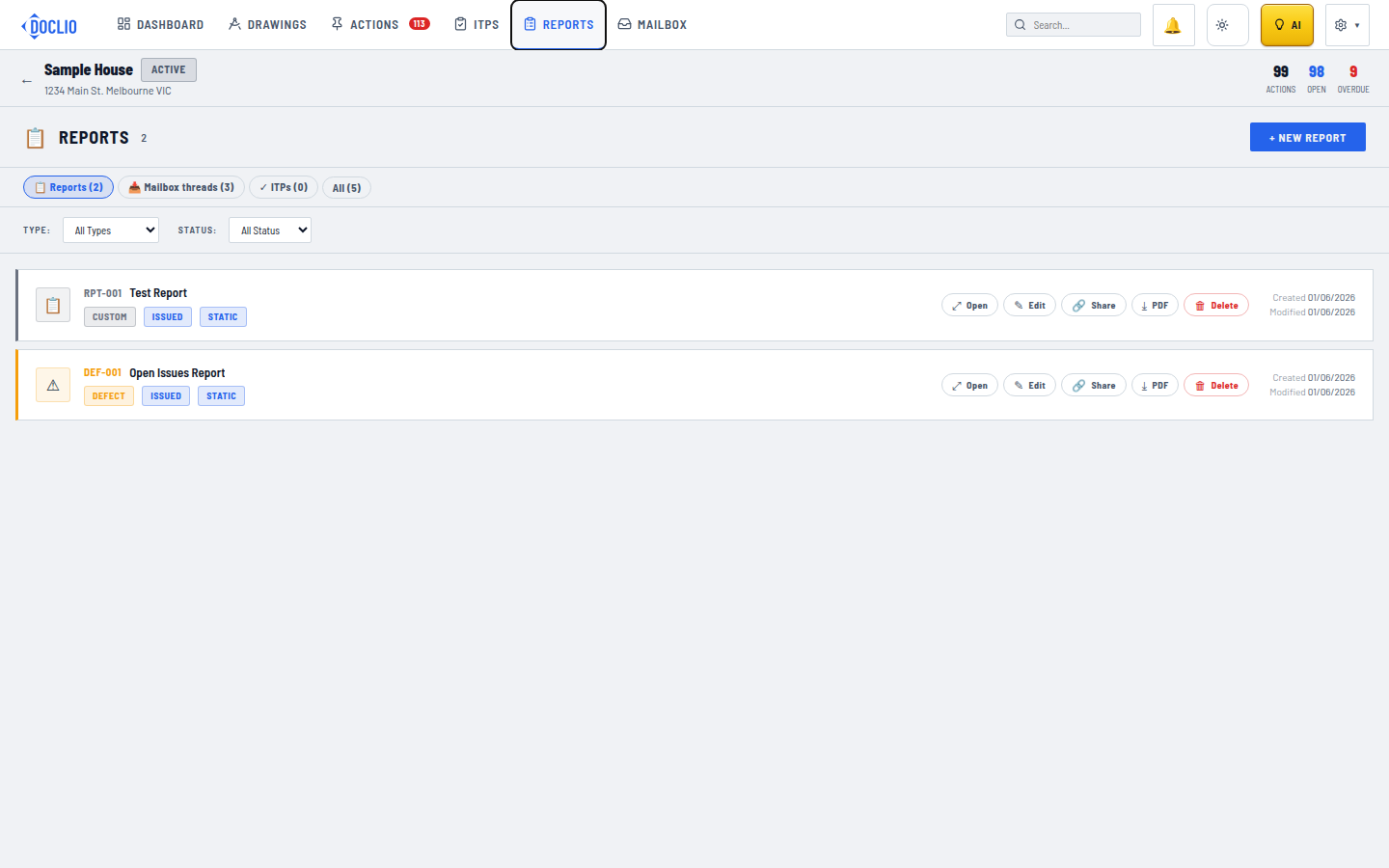
The PDF button on any report row