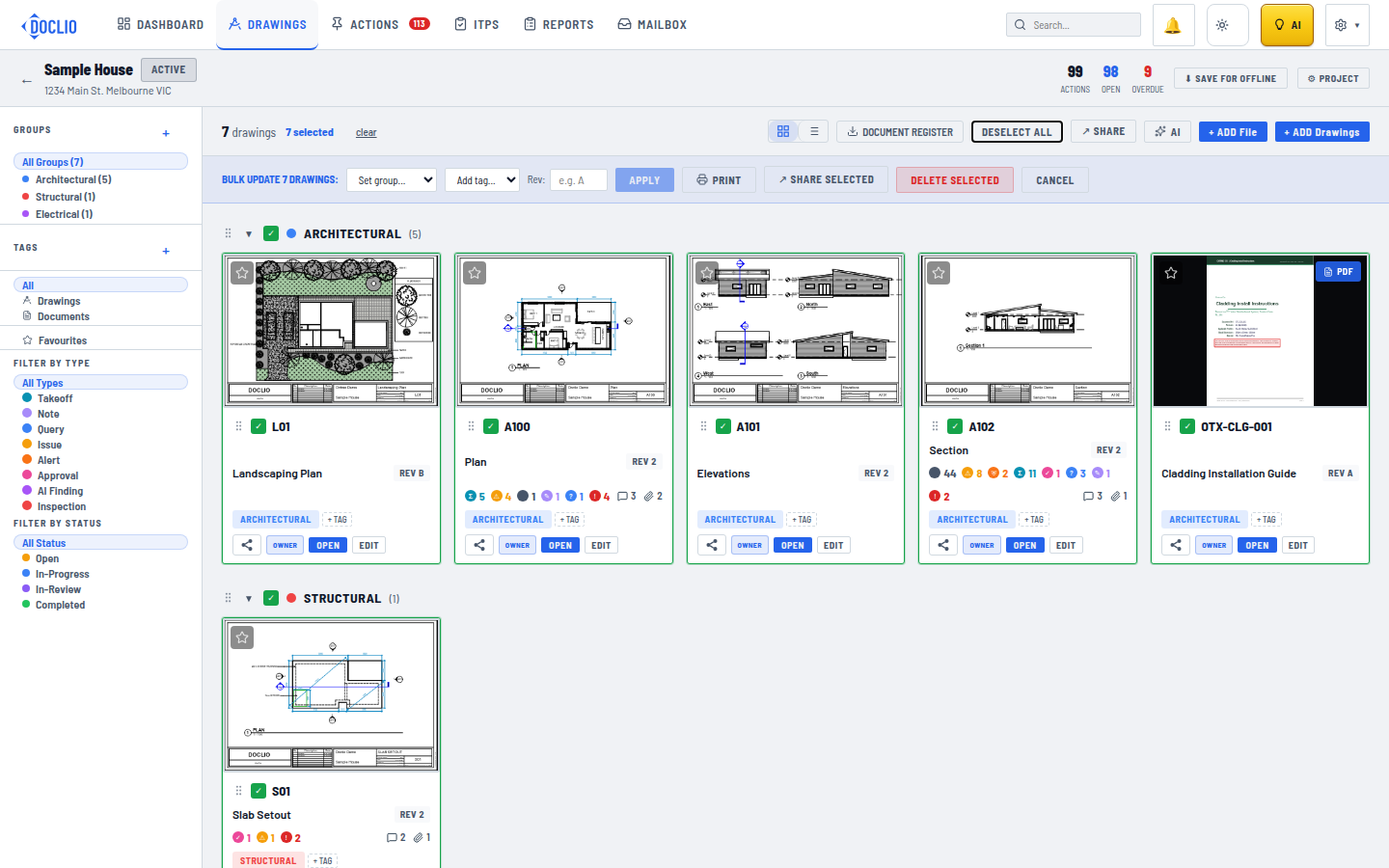
Working with Multiple Drawings at Once
Select several drawings and act on them in one go — set the group, tag, set the revision, print, share, or delete.
Selecting Multiple Drawings
- Go to the Drawings view for your project
- Click the checkbox on each drawing card you want to select, or use SELECT ALL
- A bulk action toolbar appears showing how many drawings are selected
Available Bulk Actions
- Set group... — Pick a group from the dropdown, then click APPLY to move all selected drawings into it.
- Set tag — Add a tag to all selected drawings in one pass.
- Set revision — Stamp the same revision on all selected drawings.
- PRINT — Open the print dialog for the selected set.
- SHARE SELECTED — Open the share dialog to grant access to all selected drawings at once. Useful for sharing a subset of drawings with a specific contractor.
- DELETE SELECTED — Remove all selected drawings. A confirmation dialog appears before deletion.
Tips for Bulk Operations
- Click DESELECT ALL to clear the selection
- You can continue selecting/deselecting drawings while the toolbar is visible
- Bulk operations work with drawings across different groups
Warning: Deleting drawings also removes all annotations on those drawings. This action cannot be undone. Make sure you have backups if needed.
Drawing Gallery with Selection