The Central Actions Hub
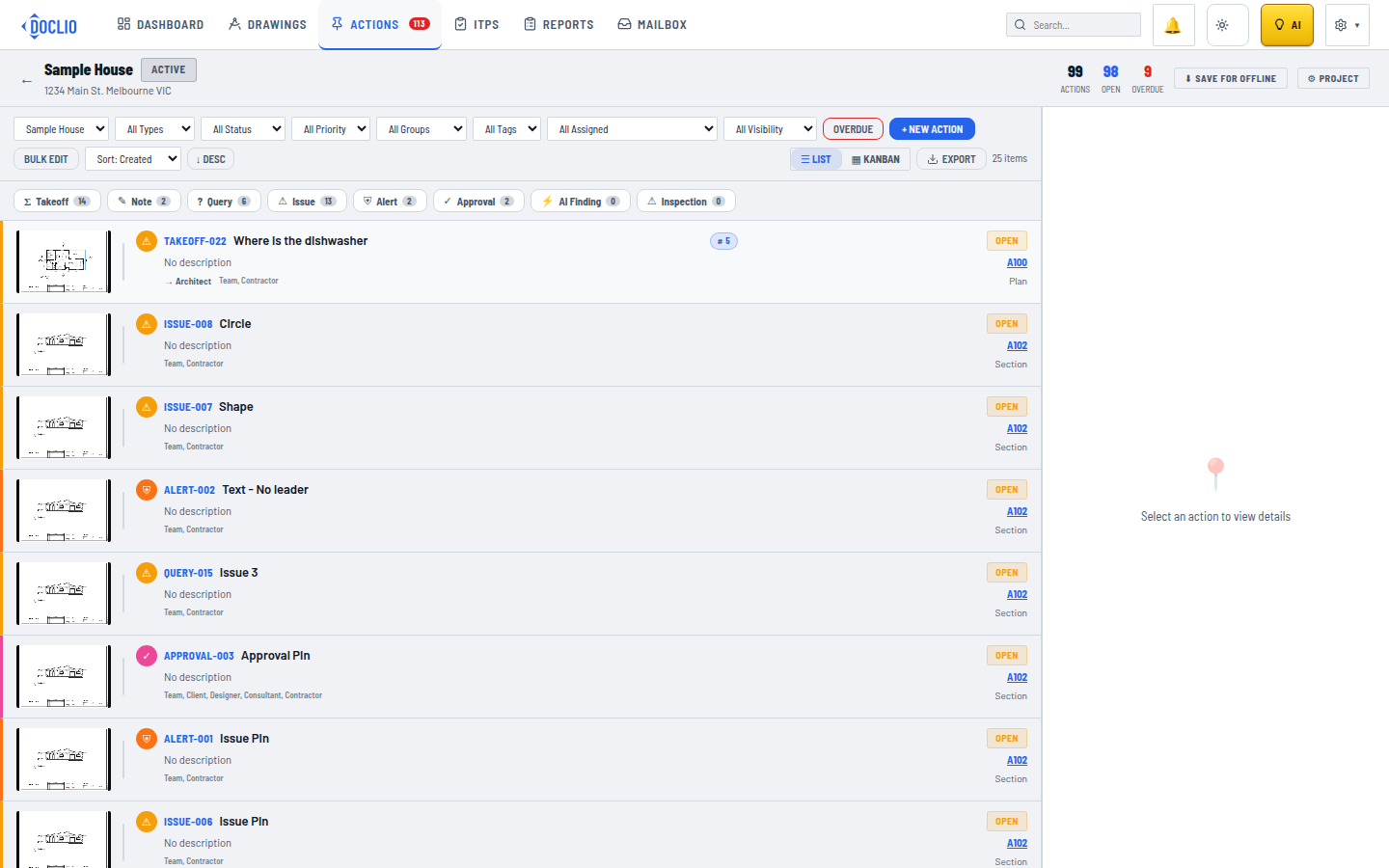
The Actions view with filter bar, type chips, and action list
The Actions view lists every action across all drawings (or all projects) in one place, with filters and a detail panel.
Accessing the Actions View
- Global — Click Actions in the top navigation to see actions across ALL projects
- Project-level — Open a project and click the Actions tab to see actions for that project only
Layout
The Actions view has two panels:
- Left: Action List — Scrollable list of all actions matching your filters
- Right: Detail Panel — Shows full details of the selected action
Toolbar
- LIST / KANBAN — Toggle between the list and a kanban board grouped by status
- EXPORT — Download the current (filtered) list as CSV for Excel, or as a PDF
- + NEW ACTION — In the project-level view, create an action directly without opening a drawing first
Each Action Row Shows
- Drawing thumbnail
- Type badge (e.g., ISSUE, NOTE)
- Status badge (e.g., OPEN, IN-PROGRESS)
- Priority badge
- Visibility level
- Title
- Project name and drawing reference
- Due date
- Comment count and unread indicator
- Attachment count
Detail Panel
Click any action to open its detail panel showing:
- Drawing context (thumbnail with pin location)
- All action fields (editable)
- Comments thread
- Attachments
- Visibility controls
Tip: Use the global Actions view during site meetings to walk through all open actions. Filter by "OVERDUE" to prioritise urgent actions.
Actions View