Keep Working When the Signal Drops
Doclio is built for construction sites, and construction sites aren't always connected. The app works without an internet connection so you can keep reviewing drawings, checking annotations, and reading reports in basements, remote sites, or anywhere else Wi-Fi and cell signal fade out.
Two Ways Offline Works
1. Automatic (passive) caching. Everything you open while online is saved on your device automatically. If you view a drawing today with signal, you can re-open it tomorrow without signal — no button to press.
2. Save for offline (explicit pinning). Heading to a site tomorrow? Tap Save for offline on a project to pre-download all of its drawings right now, even ones you haven't opened yet. This is the only way to guarantee access to files you haven't viewed before.
How You Know You're Offline
When your device loses connection, a red banner appears at the top of the screen:
OFFLINE — Viewing cached data only. Comments, status changes, uploads, and sharing will fail until you reconnect.
You can dismiss the banner; it'll come back next time you go offline. The first time you ever go offline in a browser, a pop-up explains what works and what doesn't — tap Got it and it won't show again.
What Syncs Automatically
Once you come back online, Doclio quietly checks your pinned projects for new drawings or attachments added while you were away, and downloads them in the background. You'll see a small "Updating offline data" chip at the bottom-left while this runs. You don't need to do anything — just keep working.
Related Articles
- Saving a Project for Offline Access
- What Works Offline (and What Doesn't)
- Installing Doclio as an App
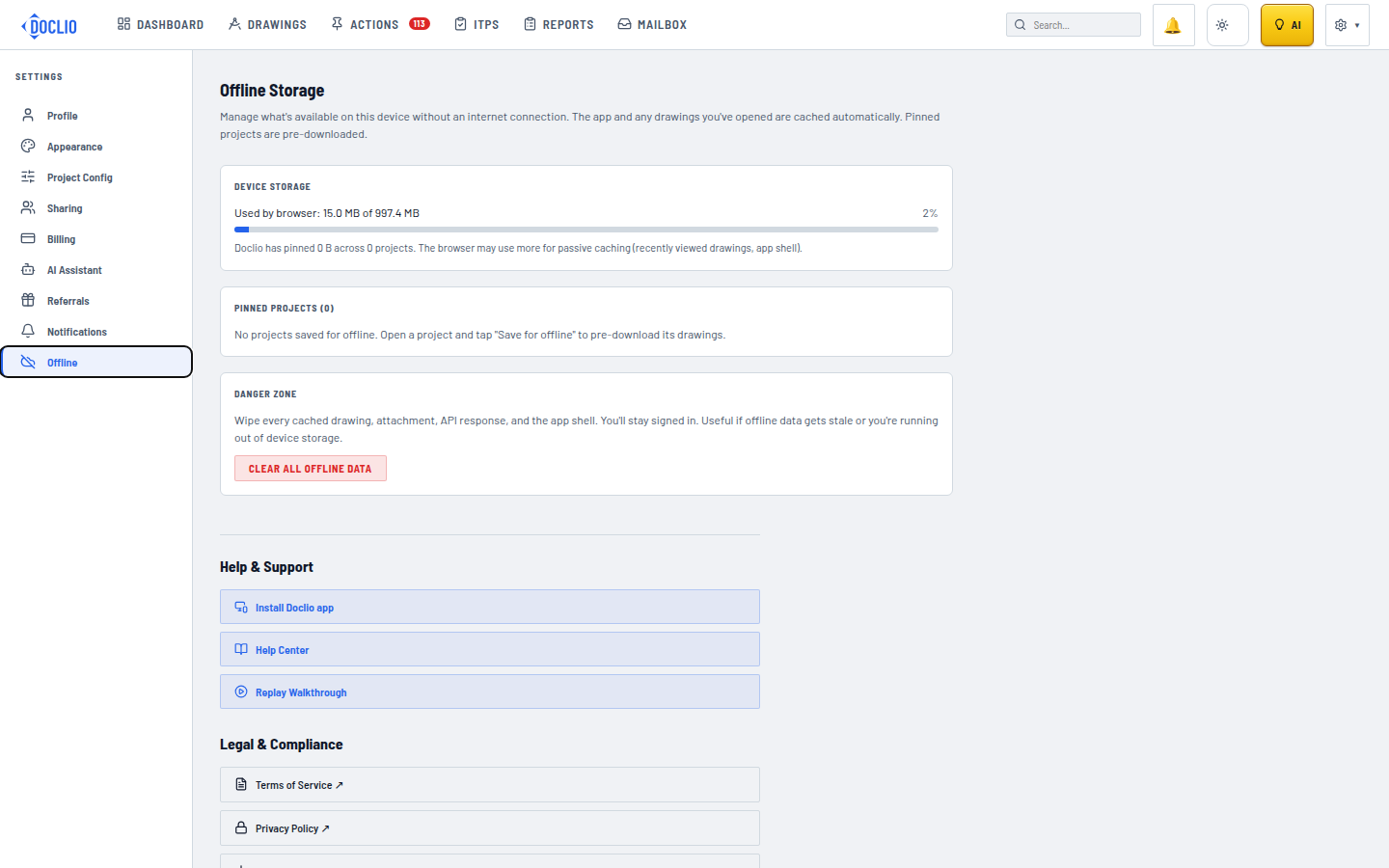
Device storage usage and pinned projects